How to Clean Your Laptop Screen and Keyboard
Safely remove smudges, crumbs and germs from your laptop screen and keyboard with simple supplies and a gentle technique that will not cause damage.
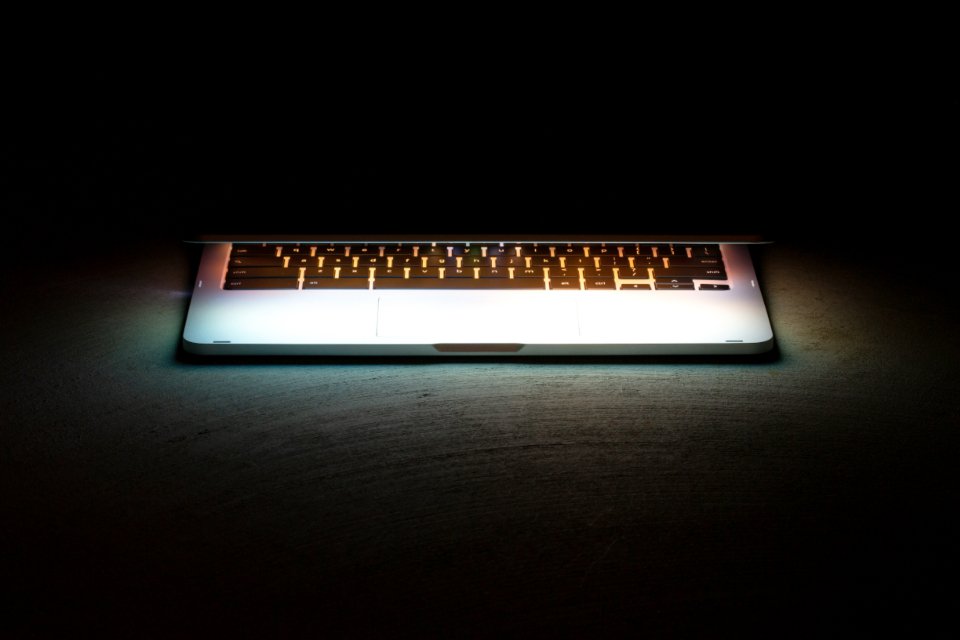
Laptops collect fingerprints, dust, crumbs and germs faster than almost anything else on your desk, especially if you use yours at the kitchen table. Cleaning one takes about ten minutes, but using the wrong product can strip a screen’s coating or send liquid where it should never go. Follow these gentle steps and your machine will look and feel much fresher.
Gather the Right Supplies
- Two clean, dry microfibre cloths, the kind used for glasses.
- Distilled or filtered water, which leaves fewer streaks than tap water.
- Isopropyl alcohol wipes or a 70 percent isopropyl alcohol solution for disinfecting the keyboard.
- A soft brush, such as a clean make-up brush or small paintbrush.
- Optional: a can of compressed air for blowing dust out from under the keys.
Avoid paper towels, tissues and rough fabrics, which can scratch. Skip window cleaner, bleach, ammonia and abrasive powders entirely. If your manufacturer publishes cleaning guidance for your model, follow it.
Before You Start
- Save your work and shut the laptop down completely, rather than putting it to sleep.
- Unplug the charger and any accessories.
- Work on a clean, well-lit surface so you can see smudges clearly.
Cleaning the Screen
- Wipe the screen with a dry microfibre cloth using light pressure. Many marks will lift off with this alone.
- For stubborn smudges, lightly dampen a corner of the cloth with water. Never spray liquid directly onto the screen, as it can seep into the edges.
- Wipe in gentle, straight strokes from top to bottom, or in small circles, without pressing hard.
- Dry the screen immediately with the second cloth.
Cleaning the Keyboard and Touchpad
- Hold the laptop open and tilt it upside down at an angle, then tap the base gently so loose crumbs fall out.
- Brush between the keys with the soft brush. If you use compressed air, hold the can upright and use short bursts at an angle to dislodge debris.
- Wipe the keys, touchpad and palm rest with an alcohol wipe or a cloth lightly dampened with isopropyl alcohol. Squeeze out any excess first so nothing drips between the keys.
- Let everything air-dry for a few minutes before you switch the laptop back on.
Do not pry keys off unless your manufacturer says it is safe, as the small clips underneath break easily. If a key is sticking after a spill, a repair shop is the safer option.
Keeping It Clean Day to Day
- Wash your hands before using your laptop, and avoid eating over the keyboard.
- Close the lid when you are not using it so dust settles less on the keys.
- Give the screen a quick dry wipe once a week and the keyboard a disinfecting clean every couple of weeks, or more often if you share the device.
- Keep drinks well away from the keyboard, and if one spills, shut down and unplug immediately, then turn the laptop upside down to drain.