How to Set Up Two-Factor Authentication
Two-factor authentication adds a second lock to your accounts. Here's how to choose a method, turn it on, and avoid getting locked out.
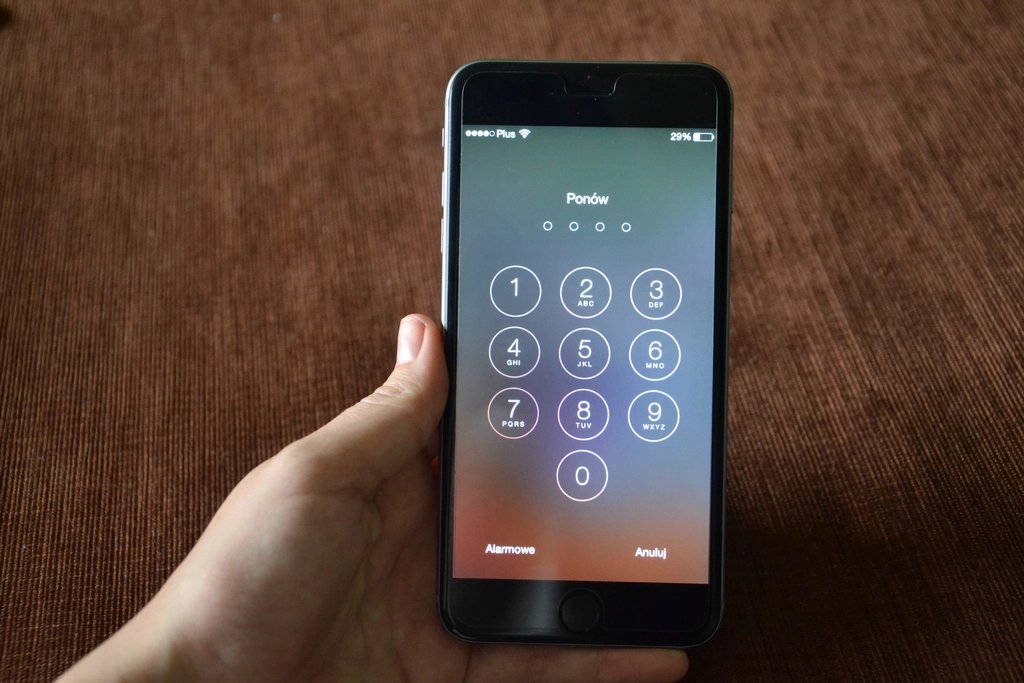
Two-factor authentication, often called 2FA, means signing in takes something you know, like your password, plus something you have, like your phone. Even if someone steals your password, they still can’t get in without that second step. Setting it up takes only a few minutes per account.
Choose Your Second Factor
Most services offer several options. Here’s how they compare, from most to least secure:
- Security keys and passkeys: A physical key or a passkey stored on your device. These are highly resistant to phishing.
- Authenticator apps: Free apps that generate a new six-digit code every 30 seconds, even without a signal.
- Push prompts: A notification on your phone asking you to approve the sign-in.
- Text message codes: Better than nothing, but vulnerable to SIM-swap scams where someone hijacks your phone number.
For most people, an authenticator app is a great balance of security and convenience. If a service offers passkeys, they’re worth trying too, since they can replace typing a password altogether. Whatever you pick, any second factor is far better than relying on a password alone.
Turn On 2FA for an Account
The wording varies between services, but the process is almost always similar:
- Sign in to the account and open its settings.
- Look for a section called Security, Sign-in, or Login and Security.
- Find the option for two-factor authentication, two-step verification, or multi-factor authentication and select it.
- Pick your method. For an authenticator app, the site will show a QR code.
- Open your authenticator app, add a new account, and scan the code.
- Type the code the app shows back into the website to confirm it works.
Save Your Backup Codes
This is the step people skip and later regret. Most services give you a set of one-time backup codes during setup. If you lose or replace your phone, these codes are your way back in.
- Print them or write them down and store them somewhere safe at home.
- Or save them in a trusted password manager.
- Don’t keep them only on the phone you use for 2FA.
If your authenticator app supports encrypted backup or syncing, consider turning that on too, so switching phones is painless.
Prioritize Your Most Important Accounts
You don’t have to do everything at once. Start with the accounts that would cause the most damage if someone broke in:
- Your main email account, since it can reset passwords everywhere else.
- Banking and payment accounts.
- Your password manager.
- Your phone’s cloud account and social media.
Tips for Staying Secure
- Never share a 2FA code with anyone who contacts you, even if they claim to be from the company.
- If you get a login prompt you didn’t request, deny it and change your password.
- Before replacing your phone, move your authenticator accounts to the new device first.
- Keep your recovery email and phone number up to date.
Once 2FA is set up, signing in only takes a few extra seconds, and your accounts become dramatically harder to break into.